
Testing & Publishing
Test Your Relational Agent
Once saved, your agent can be tested in several ways.
-
Talk with Agent — opens the agent in the same browser window, embedded inside the Platform. Useful for quick testing without leaving your workspace.
-
Open in new Tab — opens the agent in the standalone Web Client in a new browser tab. Click the arrow next to this button for a Copy URL option to share the link.
The agent’s unique identifier (e.g., @Elena) is shown below these buttons — you’ll need it when constructing Web Client URLs manually or embedding the agent as a widget.
The agent is also available in the PromethistAI iOS and Android clients after scanning its QR code.
Revisions
|
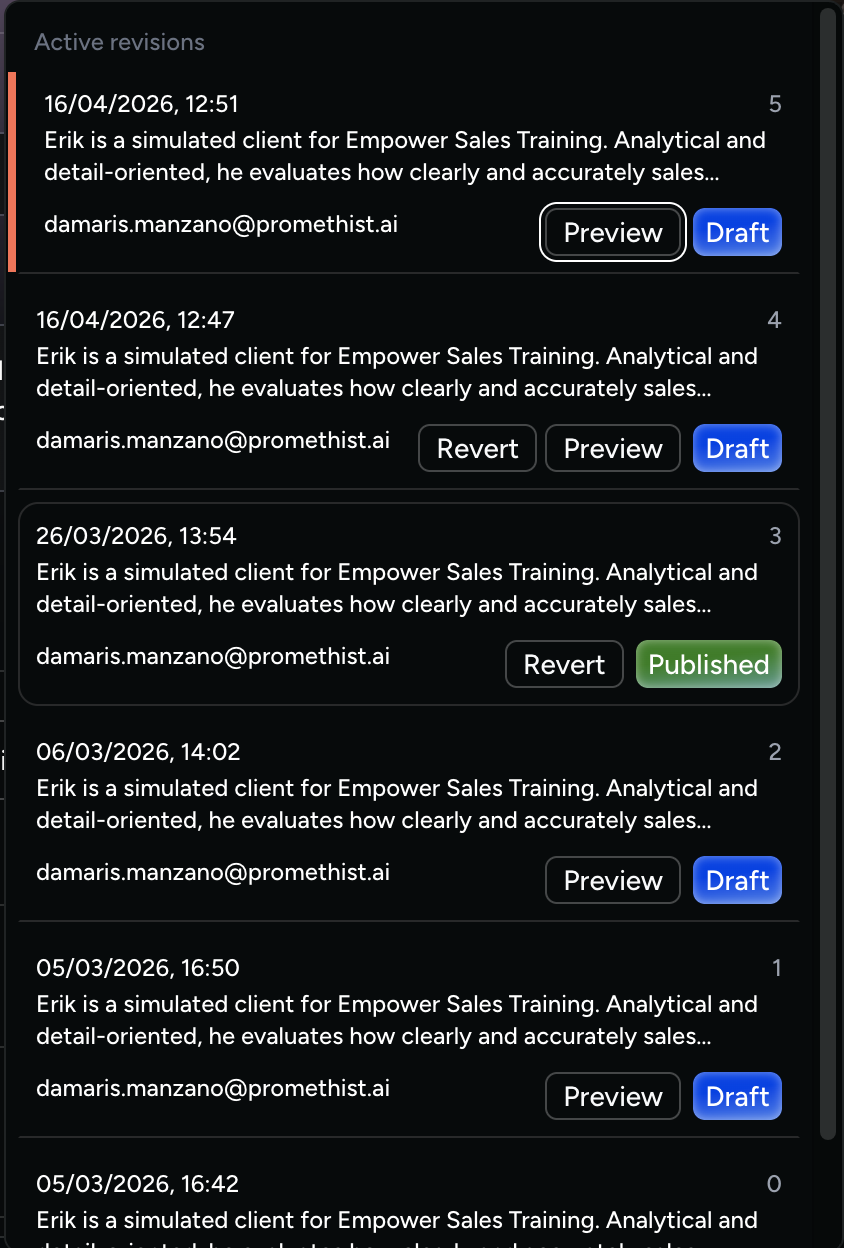
What are Revisions for? Every time you save your agent’s configuration, a new revision is created automatically. This gives you a full history of changes — so you can test a new version without touching the live one, roll back if something goes wrong, and always know exactly what your users are experiencing. Each revision moves through a lifecycle:
|
Revision States
- Draft
-
The initial state when you create an agent. Remains Draft until you move it to Preview.
Only Drafts can be edited. Once a revision moves to Preview, Published, or Archived, its configuration is permanently locked.
When you make changes to a locked revision and save, a new Draft is automatically created. You’re not editing the locked revision, you’re creating a new one based on it.
- Preview
-
Used for testing. Anyone with the preview URL can test the agent, including non-logged users.
Multiple Preview revisions can exist at the same time.
- Published
-
The live, user-facing version. The agent URL (without a specific revision number) always opens the Published revision.
Only one Published revision can exist at a time. When you publish a new revision, the previous Published revision is automatically archived.
- Archived
-
A retired revision that is no longer available to the public.